Experimental Functionality
Overview
Hello Beck contains additional functionality that is still being developed and for which the User Interface has not been finalised.
Getting Started
When you first click 'Experimental' on the selection page, you will be asked if you wish to enable this functionality, see below to decide if that's something you want to do.
The Main Experimental Menu
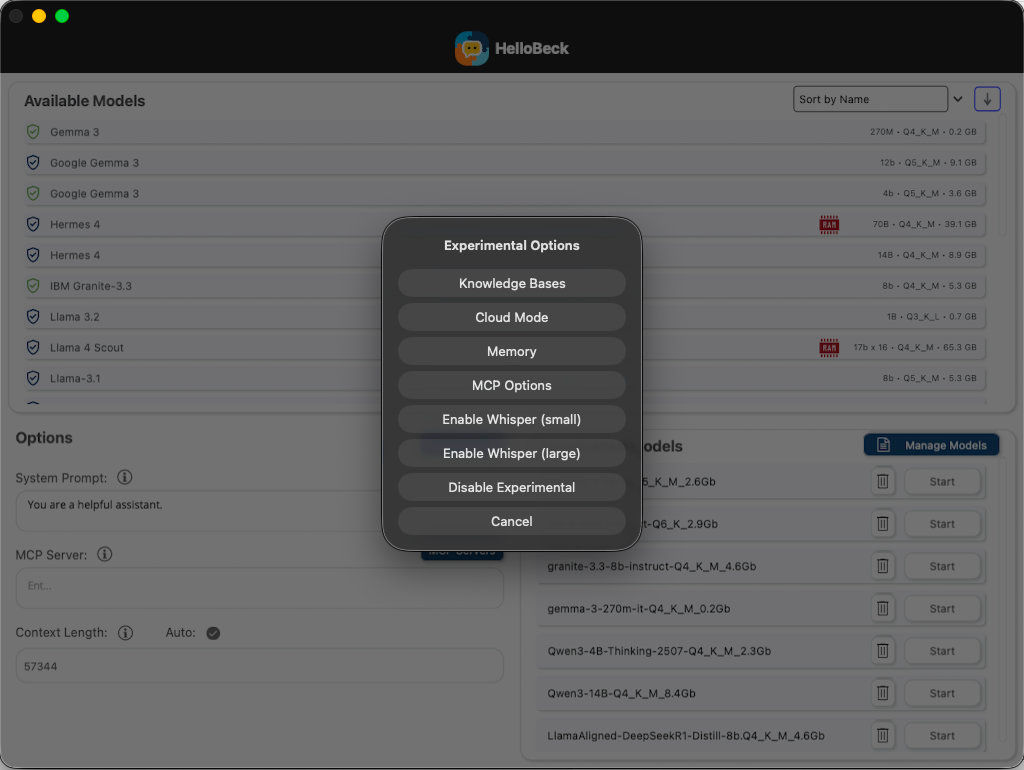
Most of the functionality can be enabled and set up from the main experimental menu, which opens when you click 'Experimental' on the selection page .
The In Chat Add Menu
Further experimental functionality is accessed through the in-chat '+' menu, these options only appear after 'Experimental' is enabled from the selection page button.
Knowledge Bases
About
The knowledge bases you add will be searched each time you enter a query for the LLM to answer, snippets of information found in the knowledge bases will be included in the input context passed to the LLM along with your query in order to help it answer. This is technique is widely known as Retrieval Augmented Generation (RAG).
Embeddings Model and Indexing
The search works by comparing Embeddings (numerical representations) of your query with those of the titles and text snippets in the knowledge base. This requires :
- An embeddings model to be downloaded, you will be prompted for this when you first select the knowledge base menu.
- The knowledge base to be indexed, key to this is using the embeddings model to generate embeddings for the titles and text snippets within it.
Realtime
You can add realtime knowledge bases, in which HelloBeck uses the public RSS feeds from popular news outlets.
When you select one (and each subsequent time they're loaded after HelloHeck starts), the titles and descriptions from the live RSS feeds are indexed, the live content from the RSS feed can then be included in the LLM's context when your query is a strong match for these.
Add file / Add folder
You can select a file or folder on your local file system to be used as a knowledge base, if you select a folder, every compatible file inside it will be used. The following file types are supported:
- Adobe Acrobat PDF
- Microsoft Work .docx
- Microsoft Excel .xlsx
- Microsoft Powerpoint .pptx
- All formats that are viewable as plain text, including .csv, .json, .jsonl and most source code files.
- The parquet format, which is popular in data science and the format in which you will find many datasets on sites like Hugging Face Hub.
Download and Add
These are some example knowledge bases that you can add just by selecting them from this menu.
- Harry Potter Q&A - Questions and Answers about the Harry Potter series of books and movies.
- EHealth Forum Q&A - Questions and Answers from a health forum. (CAUTION - the responses may not be good or accurate advice)
- Unity Developer Q&A - Questions and Answers from a forum for developers of games using the Unity Game Engine.
Cloud Mode
WARNING - CLOUD MODE MEANS YOUR QUERIES AND INFORMATION FROM YOUR KNOWLEDGE BASE ARE BEING SENT TO WHICHEVER API YOU CHOOSE TO CONNECT TO, IF YOU WAN'T TO KEEP THESE TRULY PRIVATE, USE A LOCAL LLM WITH HELLOBECK INSTEAD.
Cloud mode allows you to use HelloBeck's user interface and functionality connecting to a LLM through an API rather than locally.
Supported API Services
HelloBeck supports the following API services in Cloud Mode.
API Keys
The first time you use one of the API services above, you will be asked for an API key (for Anthropic and DeepInfra this is available in your account settings, for AWS you will need an AccessKey and SecretKey for a user with permissions to use Bedrock). The API Key will be saved on your hard drive in a hidden file called .apikey, in Hello Beck's cache folder (go up one level from the 'Model Files' directory). If you delete this file you'll be asked again for your key next time you want to use Cloud Mode.
Memory
WARNING - DO NOT ENABLE MEMORY IF YOU DO NOT WANT YOUR CHATS SAVED TO YOUR HARD DRIVE.
When memory is enabled, your conversation history is saved to a file on your hard drive, this is then indexed and used as a special knowledge base, enabling Hello Beck to recall from previous conversations and make those relevant "memories" available to the input context of the LLM.
MCP
WARNING - ONLY CONNECT TO MCP SERVERS THAT YOU TRUST.
MCP TOOLS CAN INCLUDE INSTRUCTIONS TO SEND INFORMATION TO EXTERNAL SERVICES, OR EVEN CONTAIN PROMPT INJECTION ATTACKS TO DELIBERATELY CAPTURE INFORMATION OR USE OTHER TOOLS TO PERFORM MALICIOUS ACTIONS.
HelloBeck supports MCP (Model Context Protocol) tools and resources. You configure these as a JSON string on the model selection screen (once experimental functionality is enabled), you can use the same format as Claude Desktop or Cursor (as well as some other popular formats).
Depending on how you have installed and started it, HelloBeck may not have permissions to start other local applications, as required by STDIO MCP servers that contain a 'Command' parameter which is used to start them. If your MCP server allows you to start it in Streamable HTTP mode (or the older SSE mode that also uses HTTP), try this instead. Otherwise you can use a MCP Proxy such as this to launch your STDIO MCP server and listen on a Streamable HTTP endpoint for connections from a client such as HelloBeck.
Whisper
Whisper is a popular speech to text model, HelloBeck allows you to choose between Whisper Small and Whisper Large (v3 turbo). When you select one of these from the experimental menu it will be downloaded and enabled, from then on you will have the option of attaching audio files (mp3 or wav) from the '+' menu in your chats, these will be transcribed by Whisper into text and included just like if you had pasted plain text.
Save/Load Conversation
Use these options from the '+' menu on the chat screen to save your current conversation to a .CSV file, or load a previously saved conversation from a .CSV file, even if that conversation originally used a different model.
Modify
The modify menu contains multiple options to make changes to the current conversation, these will then be reflected in the future outputs from the LLM.
Find & Replace
This will replace all occurrences of a string in the conversation text, potentially changing the meaning of the whole conversation, as can be seen in the video above.
Append to last
This allows you to enter text that will be appended to the last message in the conversation.
Rewind
This removes all the text in the conversation following the last occurance of the entered string.
Continue Generation
This will tell the LLM to keep generating output from the end of the last message WITHOUT changing the conversation turn. For example, if you have used rewind to midway through a user message, the LLM will append to the user message instead of responding as the assistant.