How to use HelloBeck
Introduction
Hello Beck allows you to run open-source Large Language Models (LLMs) locally on your machine. It allows you to download, manage, and chat with various Large Language Models securely without needing an internet connection for the actual processing.
Getting Started
When you first launch Hello Beck, the application will ask you if you would like to download a "recommended LLM", this will be a good general purpose model well suited to your hardware to get started with.
Downloading
A progress bar will appear under the "Available Models" list showing the download status and file size.
Launch Menu Page - Sections
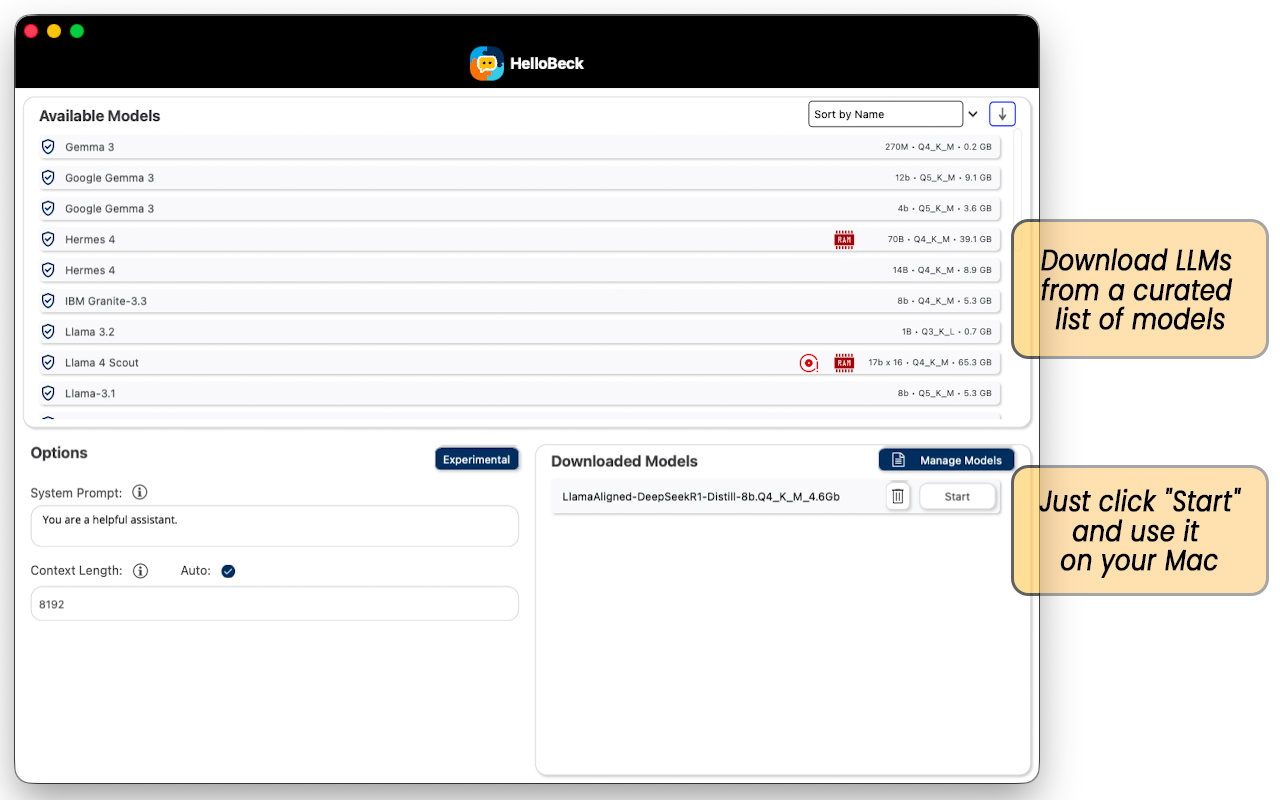
Top Panel: Available Models
This displays a curated list of models available for download,
- Model Info: Shows the name, quantisation type and the model size in parameters (e.g., 8b, 70b).
- Disk Size: Displays how much storage space the model requires (e.g., 4.6 GB, 37.6 GB).
- RAM/Hardware: Look for icons like a Red RAM chip or a Disk icon. These indicate high resource requirements. Note: Larger models (like 70B) require significantly more RAM and computing power.
- Sorting: You can sort the list using the dropdown on the top right.
Bottom Left Panel: Options
Configure how the AI behaves before you start a session.
- System Prompt: For a standard experience just leave this as something like "You are a helpful assistant," but you can change this to influence the model's responses, from something like "You are a classical poet, you always answer with a poem" or "You are Homer Simpson" to "You are a teacher who always explains things in a manner that a 7 year old can understand". The system prompt can also be used to provide extra information to help the model answer your query (i.e. reference documentation etc), or to give it examples of how to respond.
- Context Length: Determines how much memory is allocated for the model's context (this is all the text of the conversation, system prompt and any other information provided). To begin with it's easier to check the Auto box so the app will manage it.
- Experimental: Allows you to enable advanced experimental functionality, click here for more information.
Bottom Right Panel: Downloaded Models
This is all the models downloaded to your computer.
- Start: Click the Start button next to a model to load it and begin chatting.
- Delete: Click the Trash Can icon to remove a model from your disk and free up space.
The Chat Interface
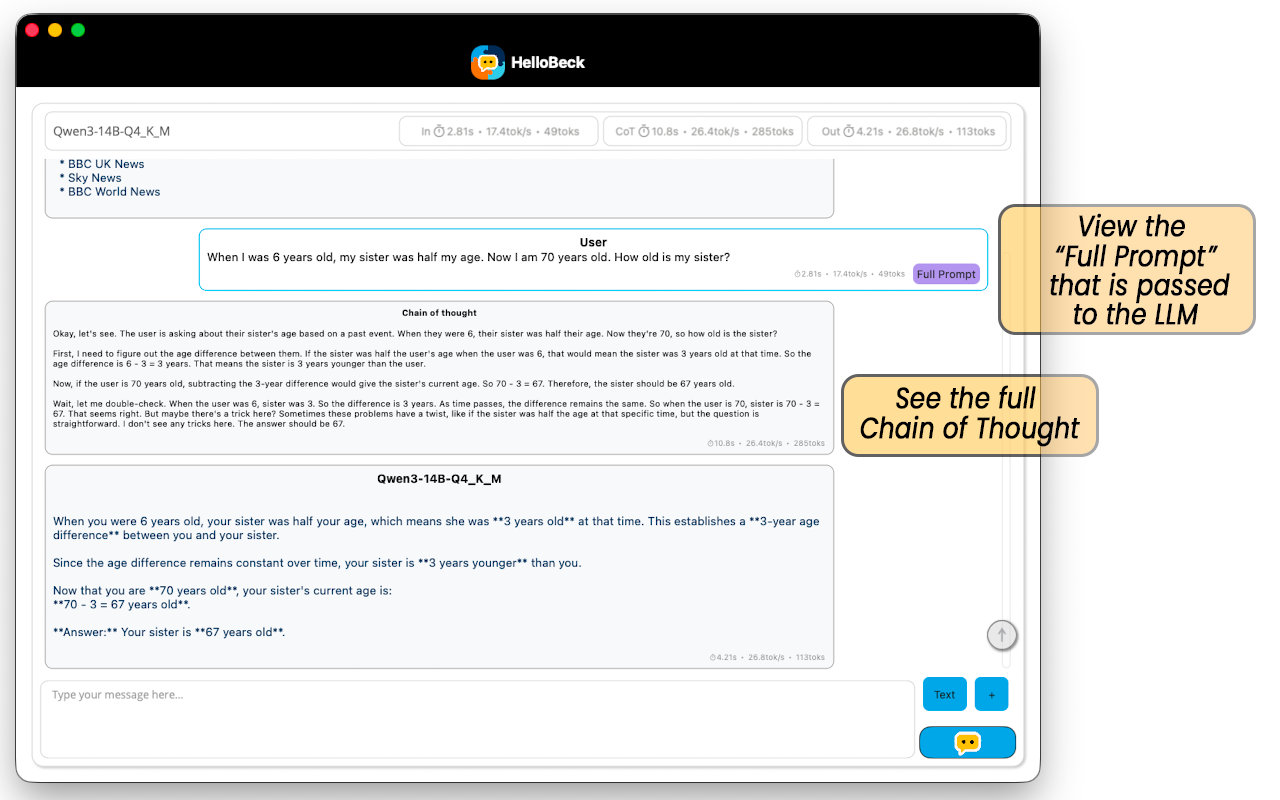
Once you click "Start", you will be taken to the chat interface.
Chatting
Type your question or prompt in the text box at the bottom and press the send button. The model will stream the text back to you.
"Chain of Thought" (CoT)
When using reasoning models (also known as "thinking models"), you will often see output labeled Chain of Thought , before the model replies to your query. This Chain of Thought output shows the model's internal "working out" that it outputs first, to enable it to generate a better final answer. For example, if you ask it to solve a logic puzzle, the CoT section will show the AI testing different hypotheses before the final output appears below.
Metrics
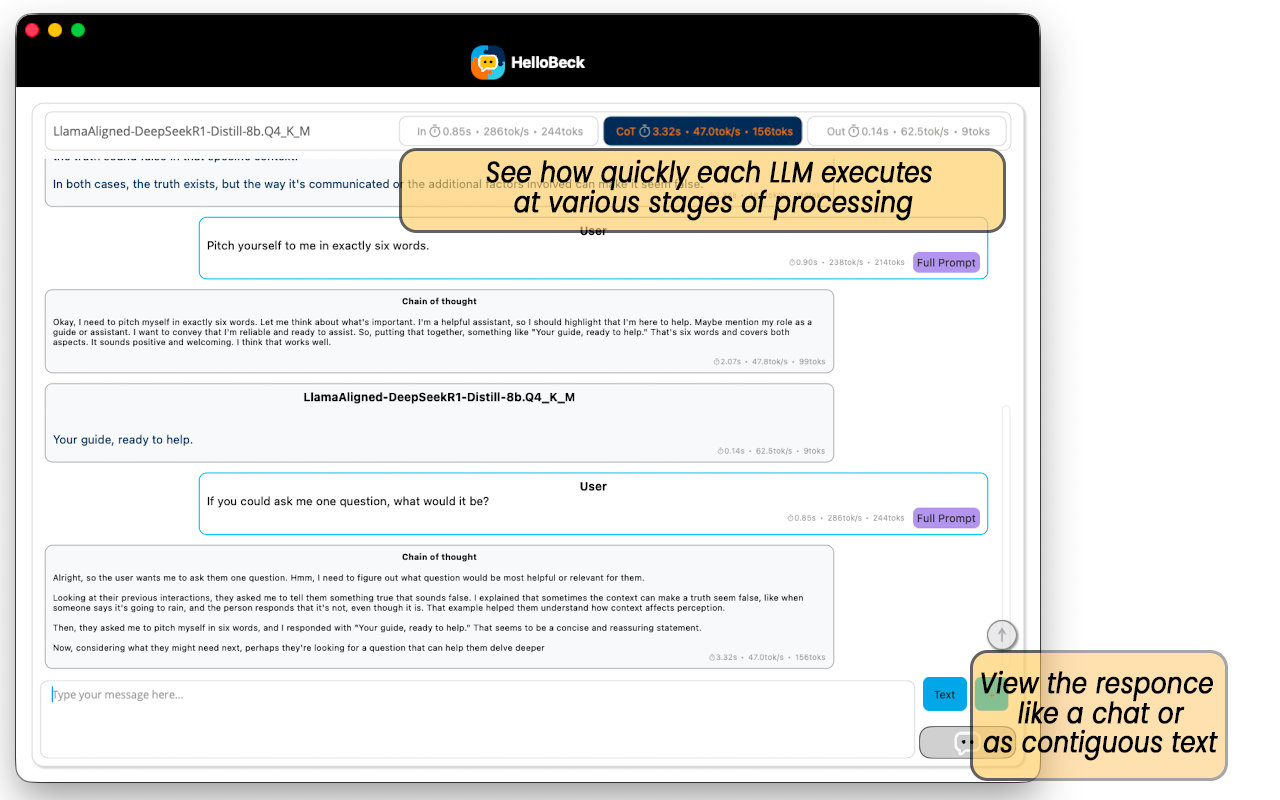
At the top of the chat window, you will see real-time statistics. These include how many there are, the time taken and the rate of processing for each of the following 3 stages.
- In: The processing of the input tokens.
- CoT: The Chain of Thought output tokens.
- Out: The output of the model's response to the query.
Note that while the speed of processing of the CoT and Out tokens should be the same to within a margin of error, it's still sometimes useful to separate them to compare how many tokens or seconds are spent on CoT relative to the response output.